Sweep Generator
First, we will have a look at the graphical user interface of the sweep generator.
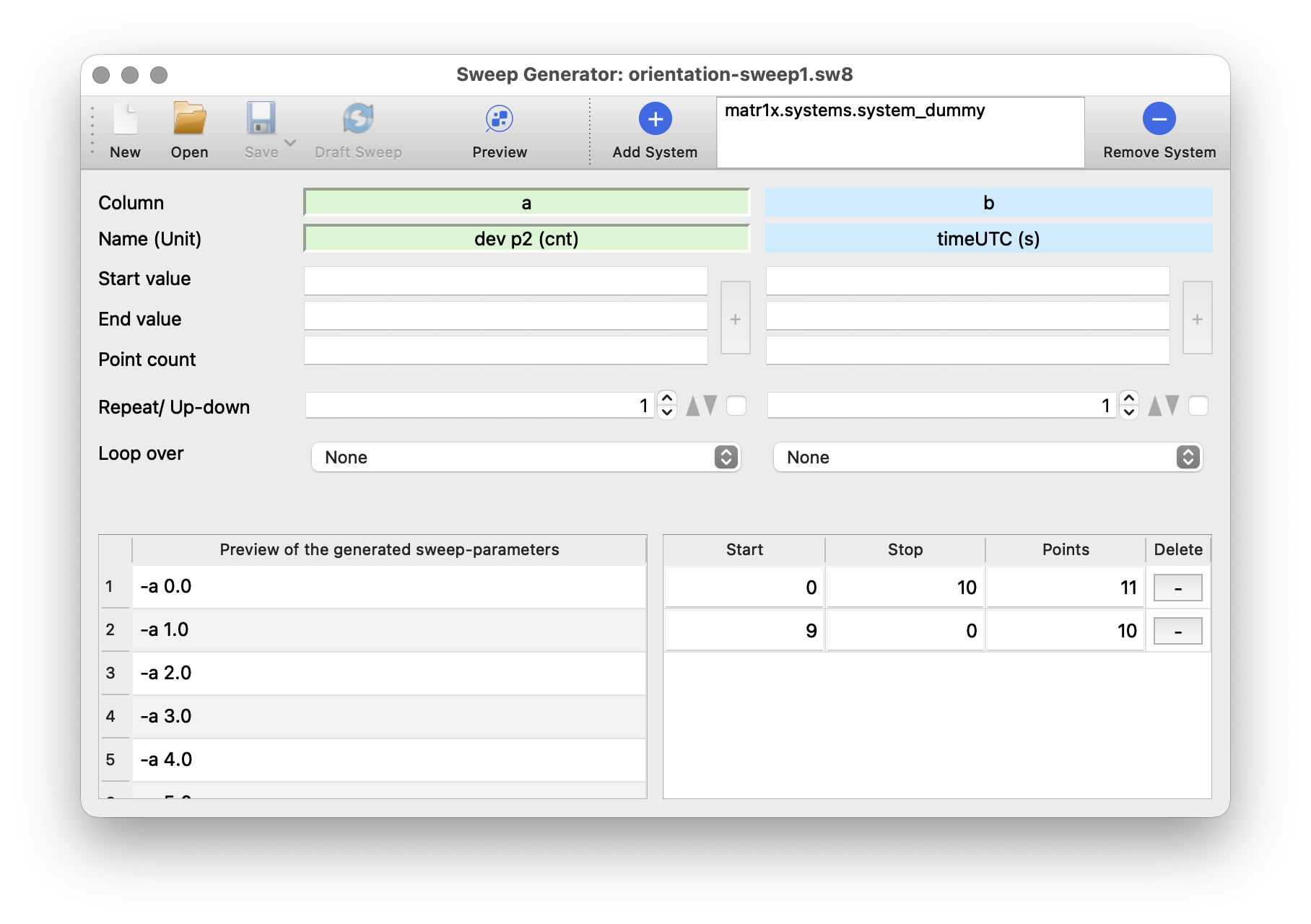
The interface has 4 main components: A toolbar, which allows quick access to the most commonly used functions. A parameter editor to edit parameters and select the column. The sweep preview to check the generated sweep and the active parameters.
Basic Usage
The Sweep Generator uses a system file to determine the input file format for the matrix program. For this tutorial, we will use a system_dummy that comes with the default installation. Press “+” to add a new system file, choose the suggested default directory, and select system_dummy from the list. Now, the appplication adds “dev p2” to the “timeUTC” column that is always available. To generate a sweep from 1 to 10 in 10 steps in column a, set ‘Start’ of column a to 1, ‘End’ to 10 and ‘Step count’ to 10. Click on ‘Append’ and then ‘Preview’ to see a graphical preview. Now, click on ‘Save’, and select a filename to save the sweep.
The sweep can then be generated, previewed and manipulated until it suits the requirements/wishes of the experimentator. We suggest to play with the interface to get familiar with the available options. Overall, it offers several possibilities to generate and customize a sweep used for device control.
Stateful systems expose a predefined state selector directly in each system-list row. By default, only one state of a system can be selected. A system may declare independent exclusion groups when different states represent separate devices; in that case it can be added once for each group. Selecting a state occupied by another row swaps the two selections atomically. The saved reference uses the form system_import_name::<state>.
- Basic sweeps (similar to numpy linspace)
- Appending several basic sweeps.
- Up and down modifier
- Repetition of generated patterns
- Looping of a sweep over a sweep
- A combination of the above.
While (1) was already utilized, (2) just allows to concatenate severals of these basic sweeps. We will go through the other options in the next sections. All these options modify the generated sweep in some way and apply to all sweeps.
Up and Down Modifier
Follow the same procedure as above but tick ‘Up- and down’. If the simple sweep above is used, the sweep would go from 1 to 10 in 10 steps and then back from 10 to 1 in another 10 steps.
Repetition of Generated Patterns
Define the sweep you want to repeat (can include several sweeps and the up and down option). Set the textedit ‘Repeat’ to the number of times you want to repeat the pattern (e.g. 2 results in 2 times the pattern, 5 in 5 times the pattern, etc. while the default is 1).
Again with the simple sweep above and “repeat = 2”, the resulting sweep would go from 1 to 10 in 10 steps and then again from 1 to 10 in 10 steps
Looping
Define the sweep as you want to have it (can include several sweeps, the up and down option and repetitions). Define the sweep you want to loop over in another column. Now, select the column you want to loop over in the other column and click on generate or preview the sweep.
An example: You have a sweep in the first column and append “1/1/1” for the second column. Then, the second column can be set to loop over the first one. This results in “1” as a value for the second column being added value of the first column.
Parameters accepting multiple values
For each of the values the corresponding parameter accepts (e.g. magnetic field along x and y), sweep generator will generate a column where the value can be set. Since the parameter always requires two values to be set, the values in both columns need to be of equal length (i.e. we always need to provide both, x and y component of the field). Sweep Generator will inform you if the values in both columns are not of equal length.